|
Screen
Shots
Here are some
screen shots from the software broken down by area.
Affiliates
Signup
Affiliates Area
Management Area
LinkCodeGenerator
User Guide
Note:-
Not all functions are displayed, these screen shots are
only as an example of what the program looks like and
how the interface works.
Details:-
|
Affiliates Signup
|
|
Signup form
This is the form used by sites
to signup to your affiliate program and become
affiliates of your site. You can edit this
page like you would a normal HTML page. You
can add extra fields of your choosing, select
which are required and which are optional,
and set which affiliate program types are
available.
Click
the graphic on the right for a larger version
with notes.
|
|
|
Top
|
Affiliates Area
|
|
Login Form
This is the form used by your
affiliates to login to their statistics area.
They can also select to receive a password
reminder if they have forgotten their login.
Click
the graphic on the right for a larger version
with notes.
|
|
|
Affiliate Area
This is the area where affiliates
can view their statistics by day, date, or
pay period. They can also view a toplist of
which affiliates are earning the most commissions,
update their information, view affiliates
they have referred, and download your banners
and text links.
Click
the graphic on the right for a larger version
with notes.
|
 |
|
Affiliate Statistics
This is where the affiliate
statistics are displayed. With the option
of viewing the URLs of where the clicks came
from.
Click
the graphic on the right for a larger version
with notes.
|
 |
|
Top
|
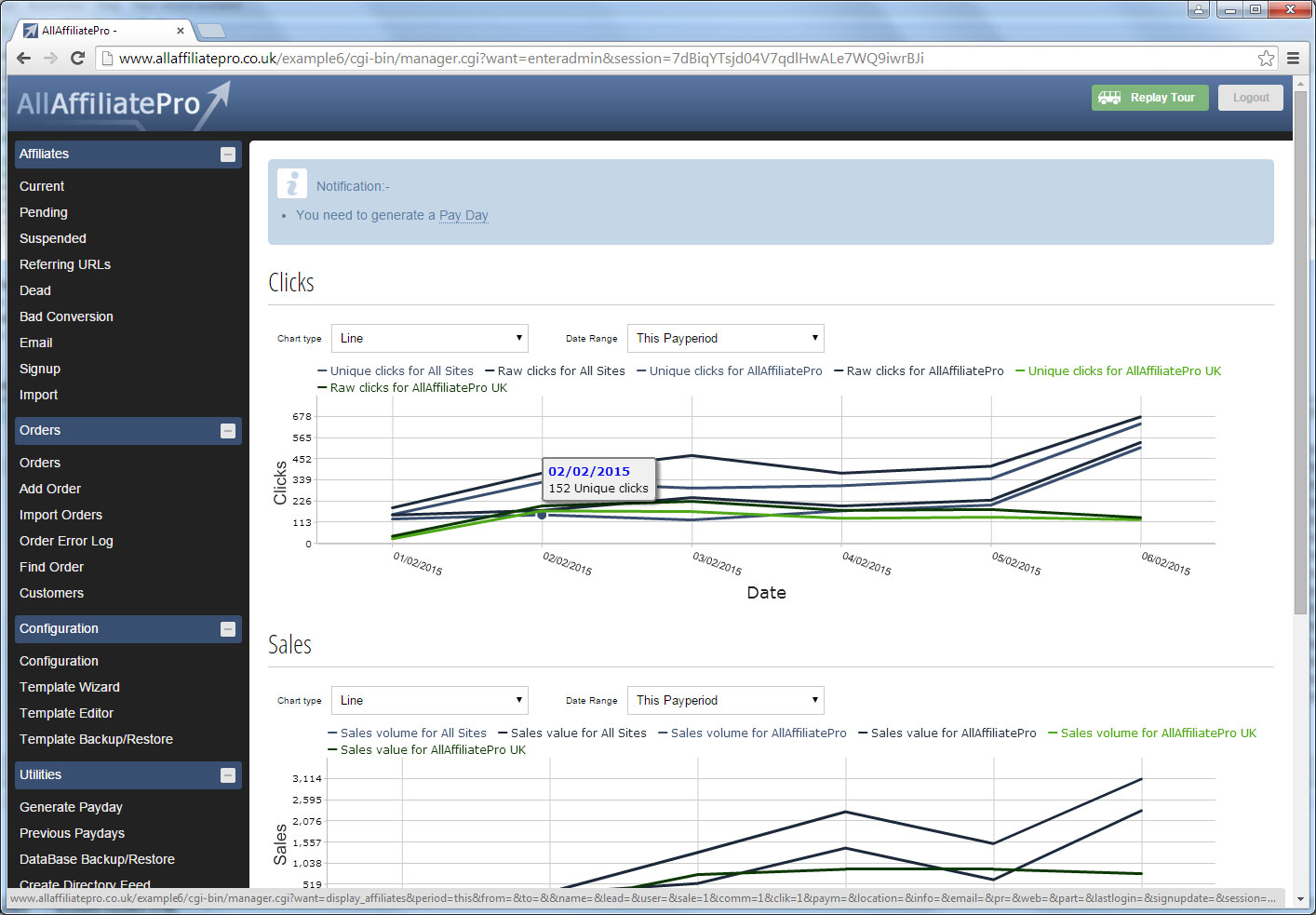
Management Area
|
Main Management
Area
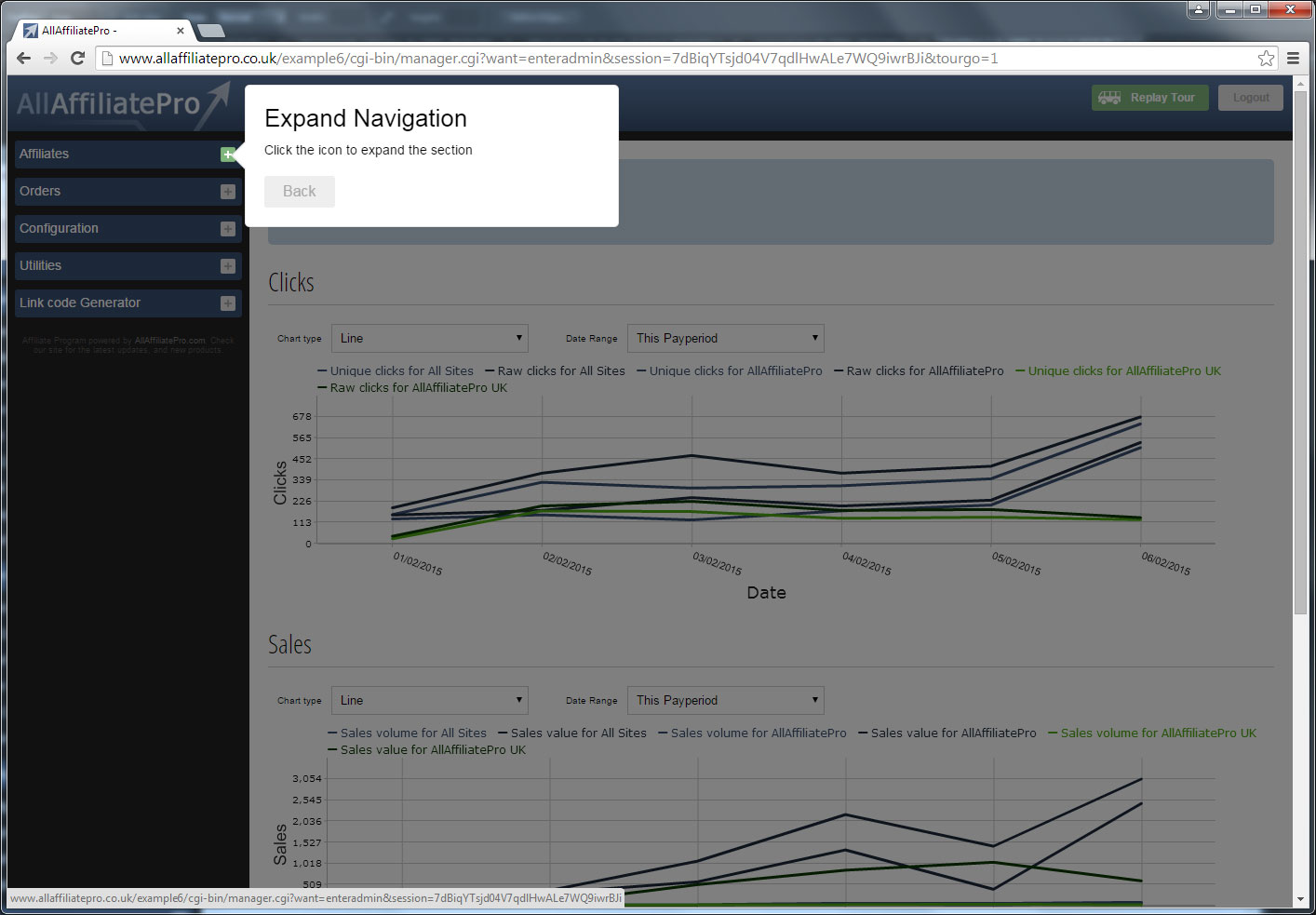
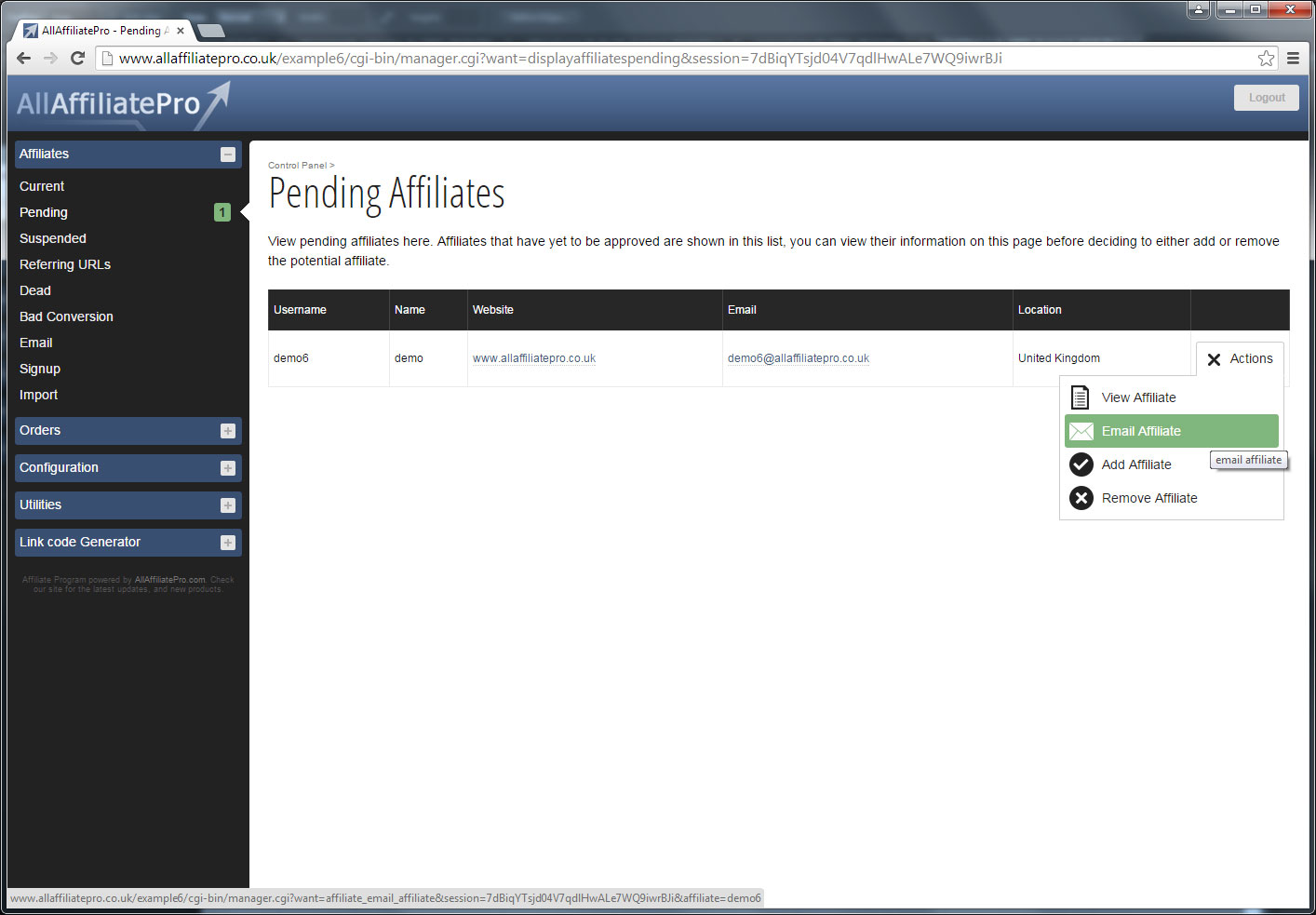
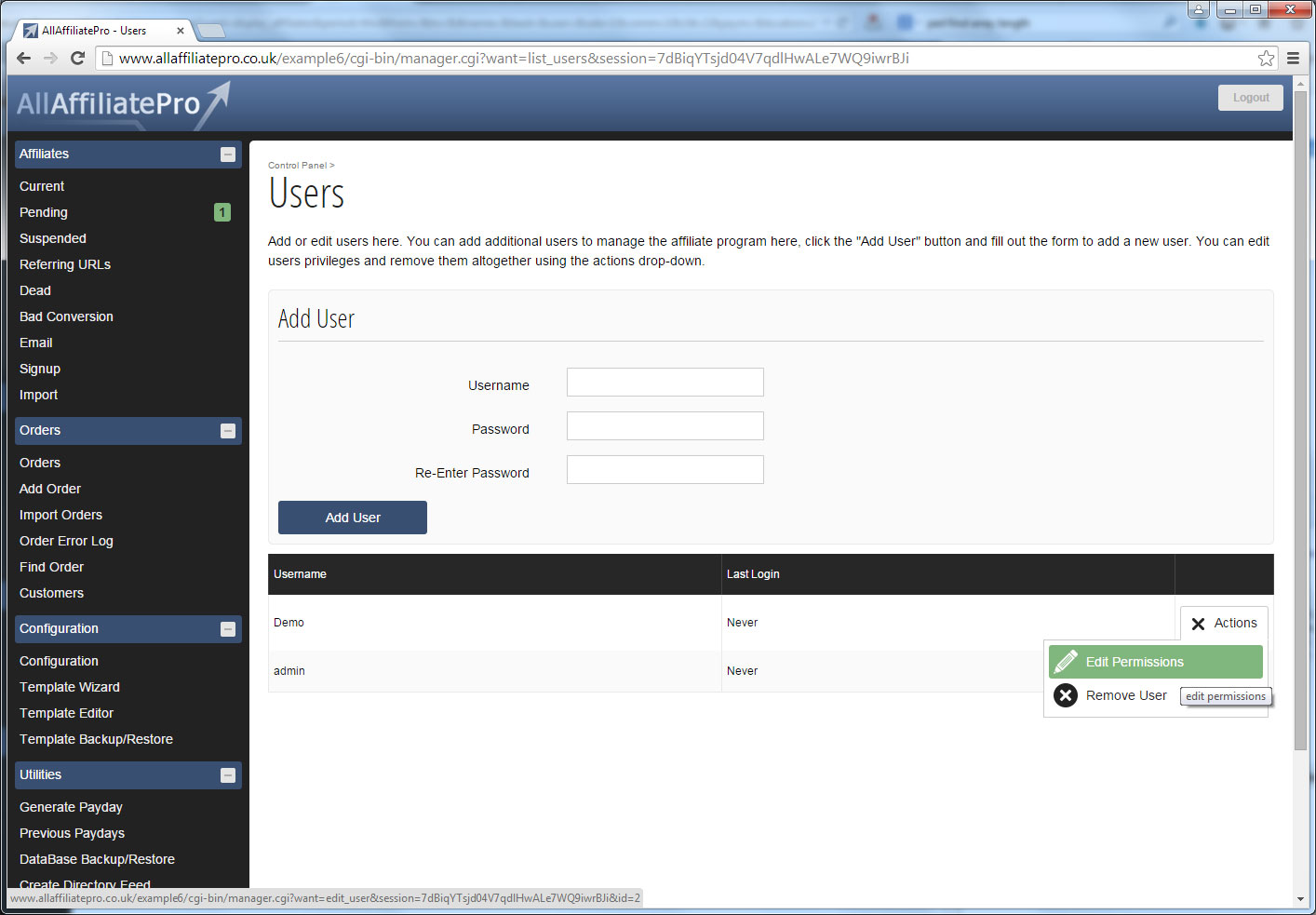
From here you can administer
all aspects of your affiliate program. The functions
are split into 6 categories.
Quick Details - This displays how many
affiliates you have in your program, and how
many are pending or suspended.
Affiliate Statistics - Here you have
several options for viewing affiliate statistics.
3 of these options are covered in more detail
below.
Utilities - From here you can edit your
affiliate programs configuration (covered in
more detail below). View sales commissions awaiting
approval, this applies if you select to manually
confirm all affiliate commissions rather then
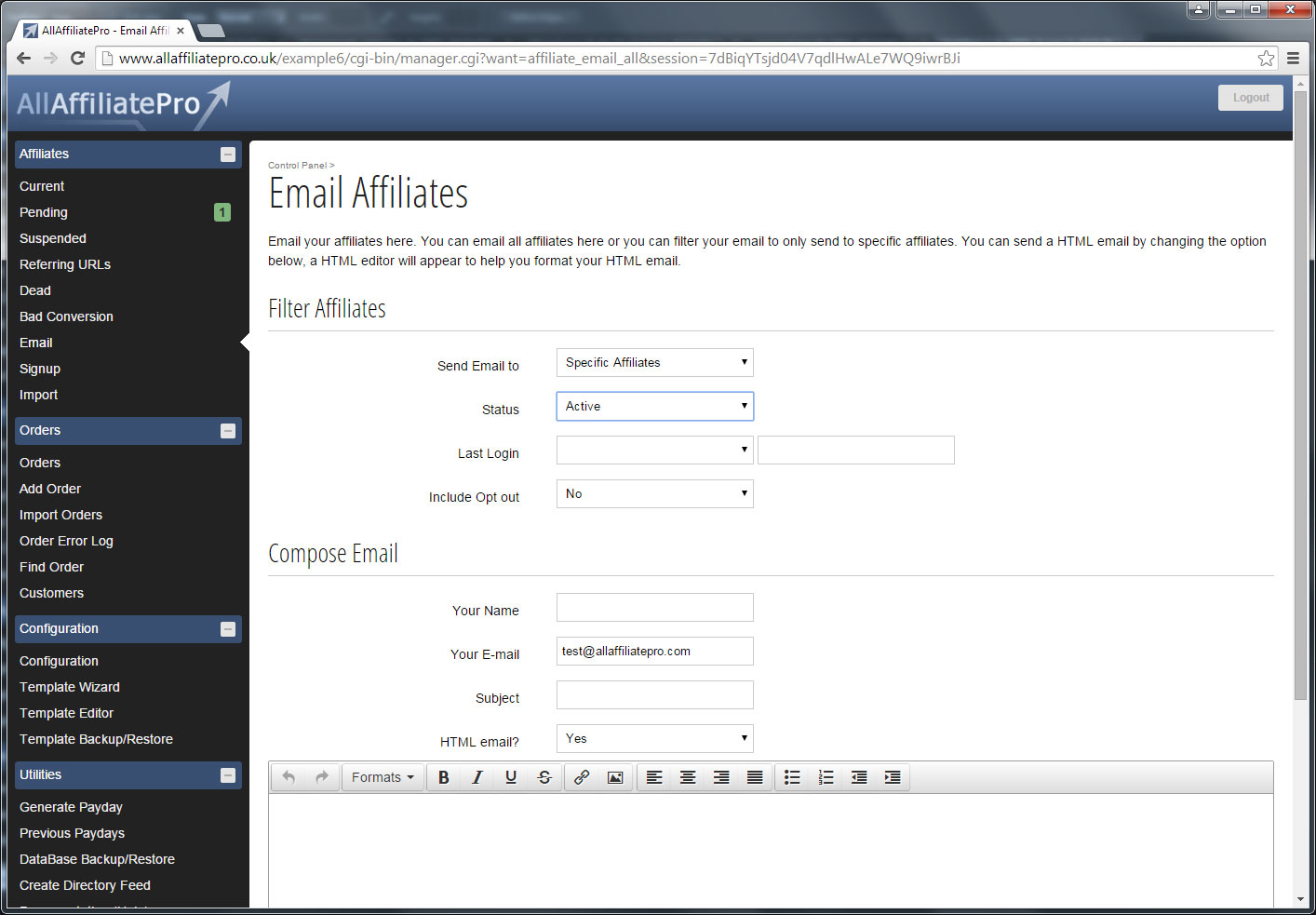
having them added automatically. Email all your
affiliates in one. Generate a pay period, and
check for tracking errors.
Change Login - This allows you to change
the login to the management area.
Reports - Here you can generate reports
displaying affiliates which are no longer sending
traffic (Dead), which are earning over a variable
amount, or which have low click to sale conversion
ratios.
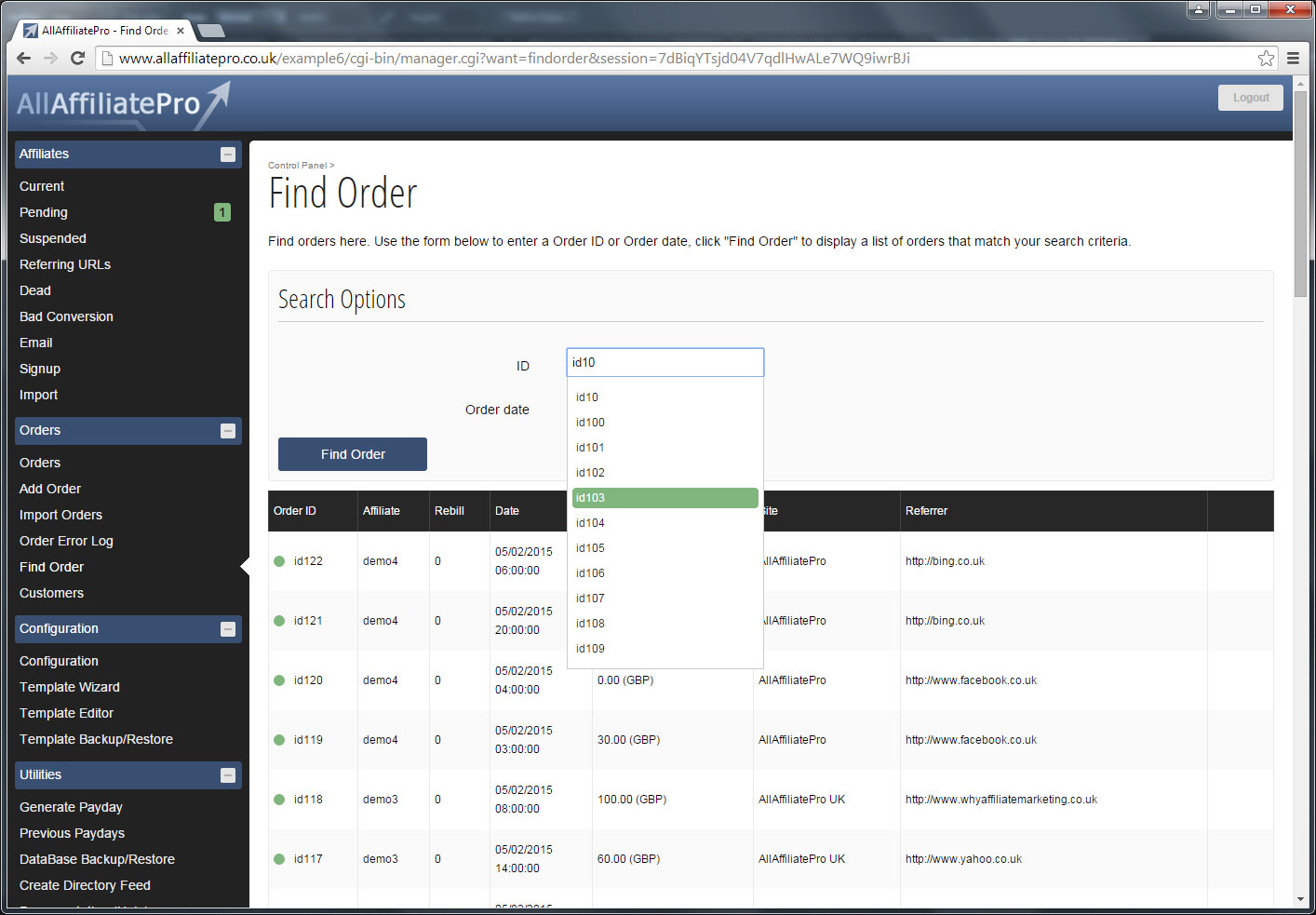
Order Tracking - Here you can lookup
an order number to see if it carries any affiliate
commissions, and manually add commissions to
an affiliates account.
Click
the graphic on the right for a larger version.
|
|
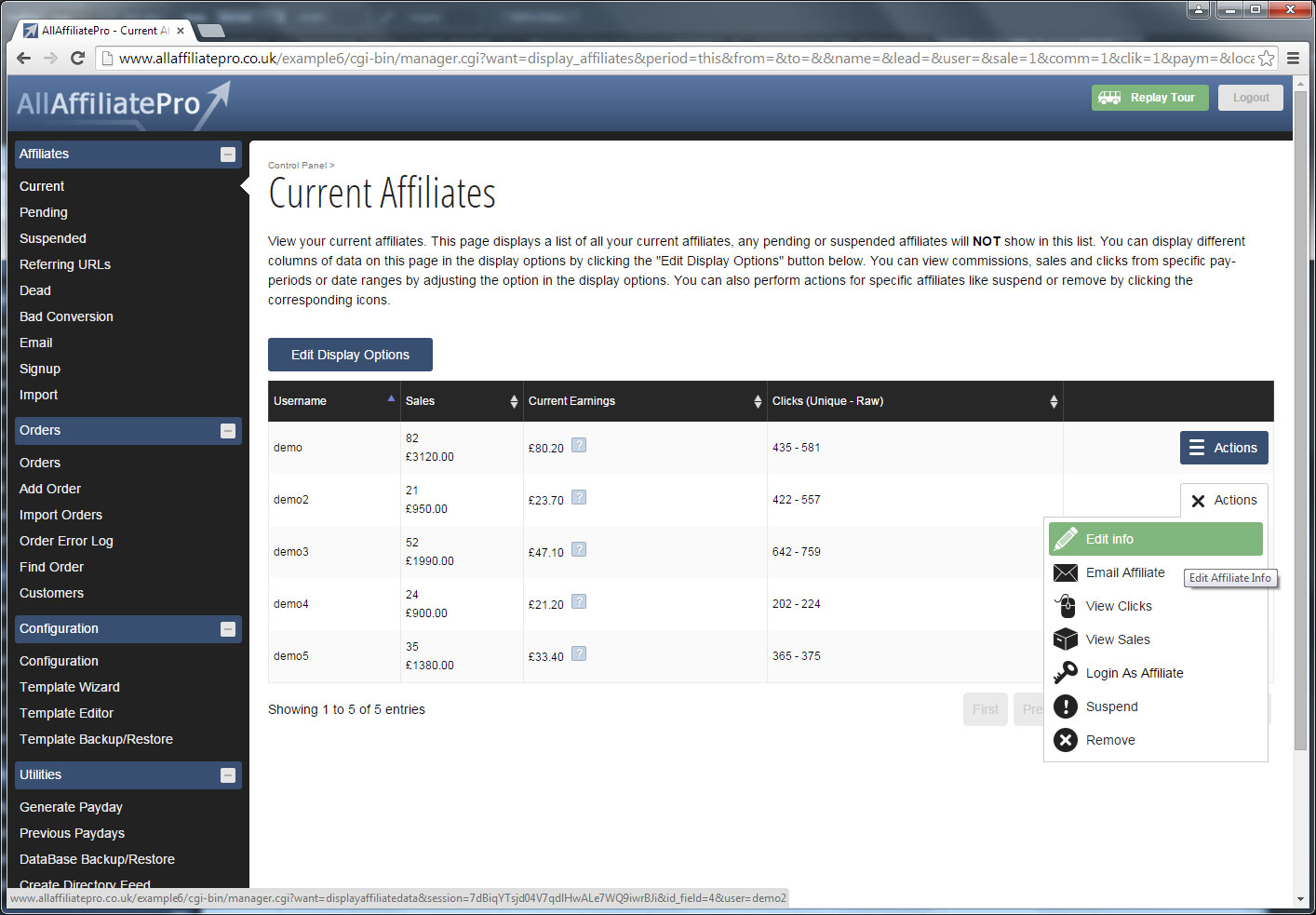
Display
Affiliates
This displays a list of all your affiliates,
displaying their commissions. It allows you
to view orders they have sent, update their
information, view what pages they are sending
clicks from, send them an email and suspend
or remove them.
Click
the graphic on the right for a larger version
with notes. |
|
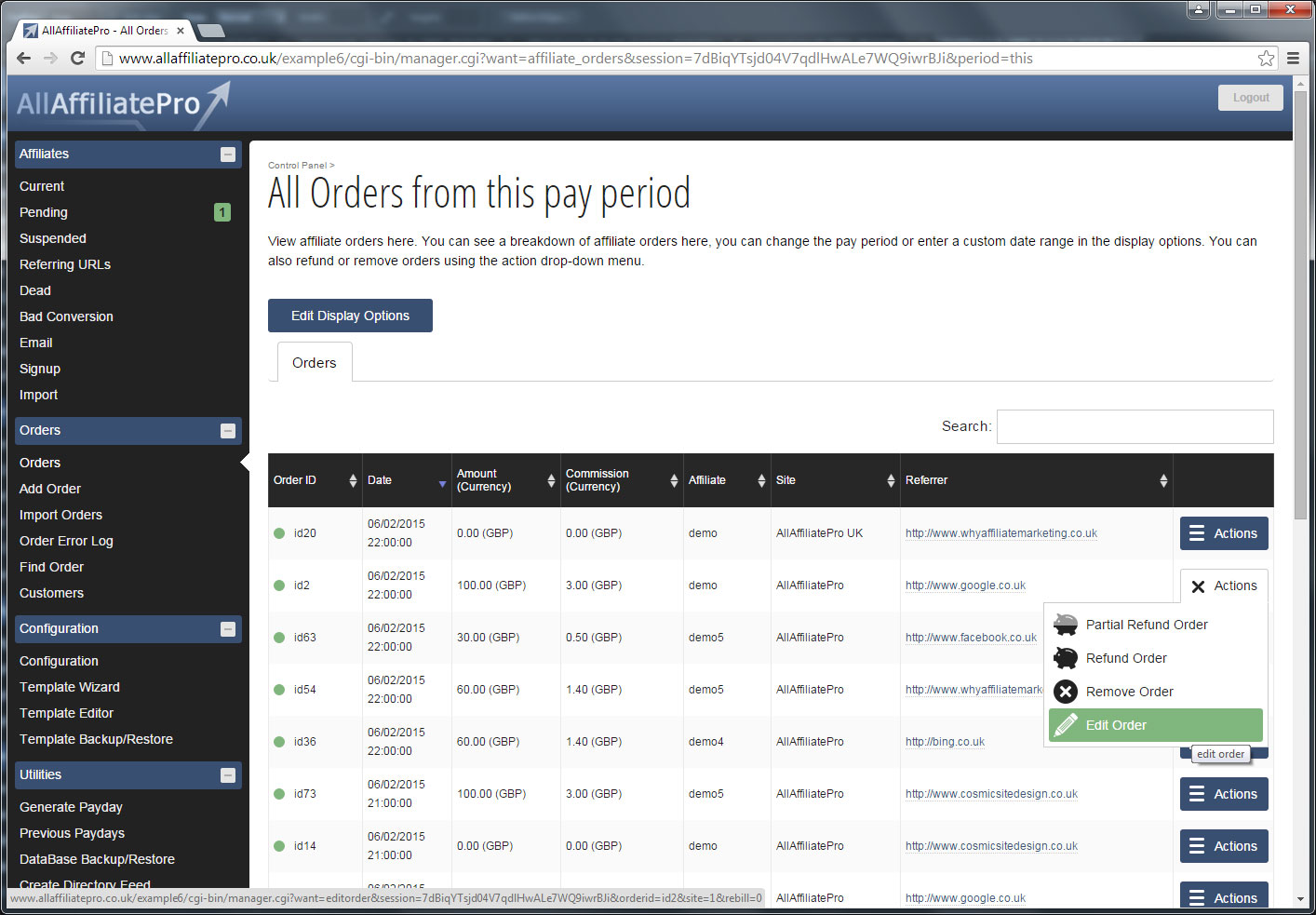
Display
all Affiliate Orders
This displays a list of all orders
which carry affiliate commissions. Allowing
you to contact the affiliate, and remove the
commissions.
Click
the graphic on the right for a larger version
with notes. |
|
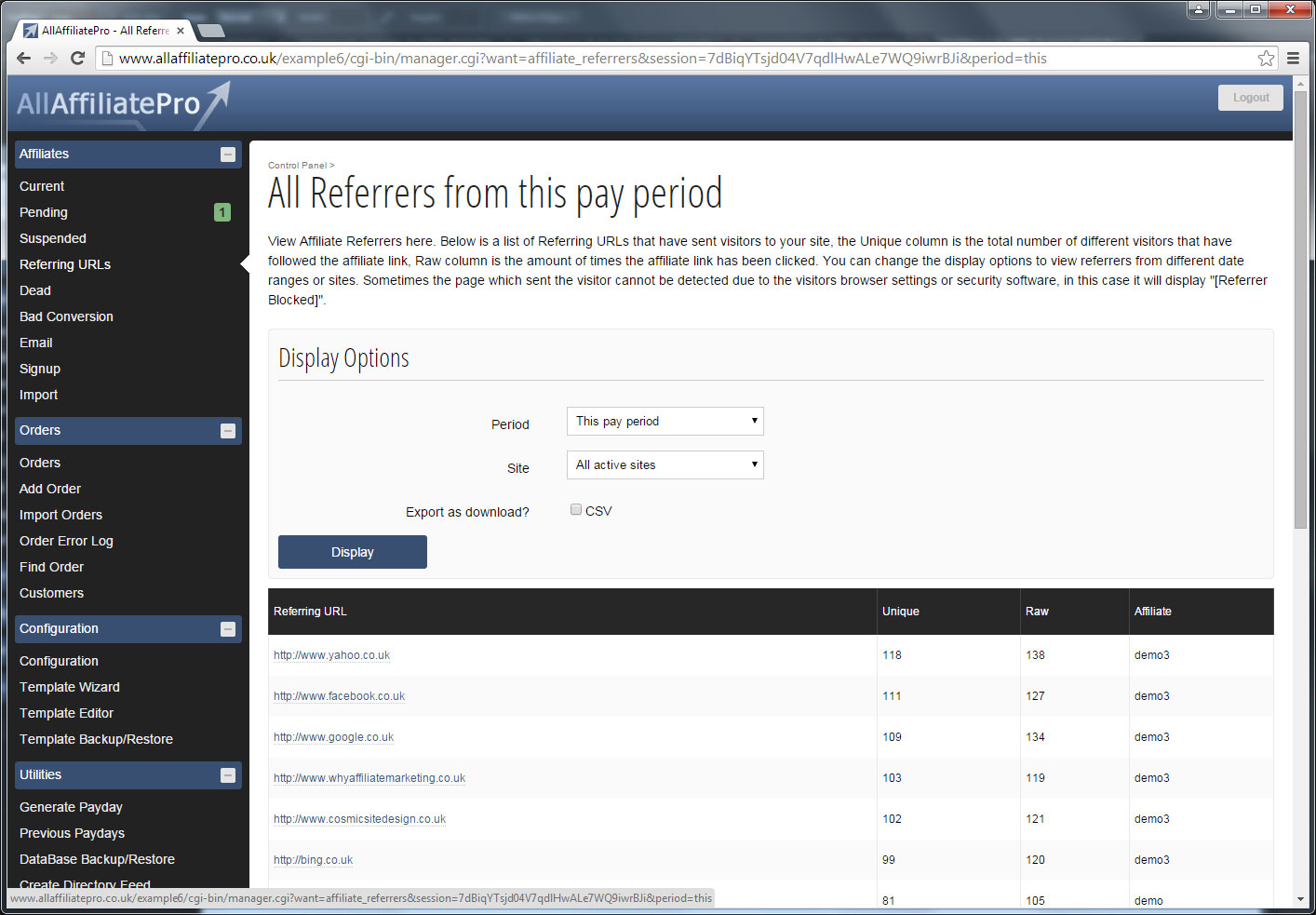
Display
all Affiliate Referrers
This displays a list of all the
affiliates pages which are sending you clicks,
and how many clicks they are sending.
Click
the graphic on the right for a larger version
with notes. |
|
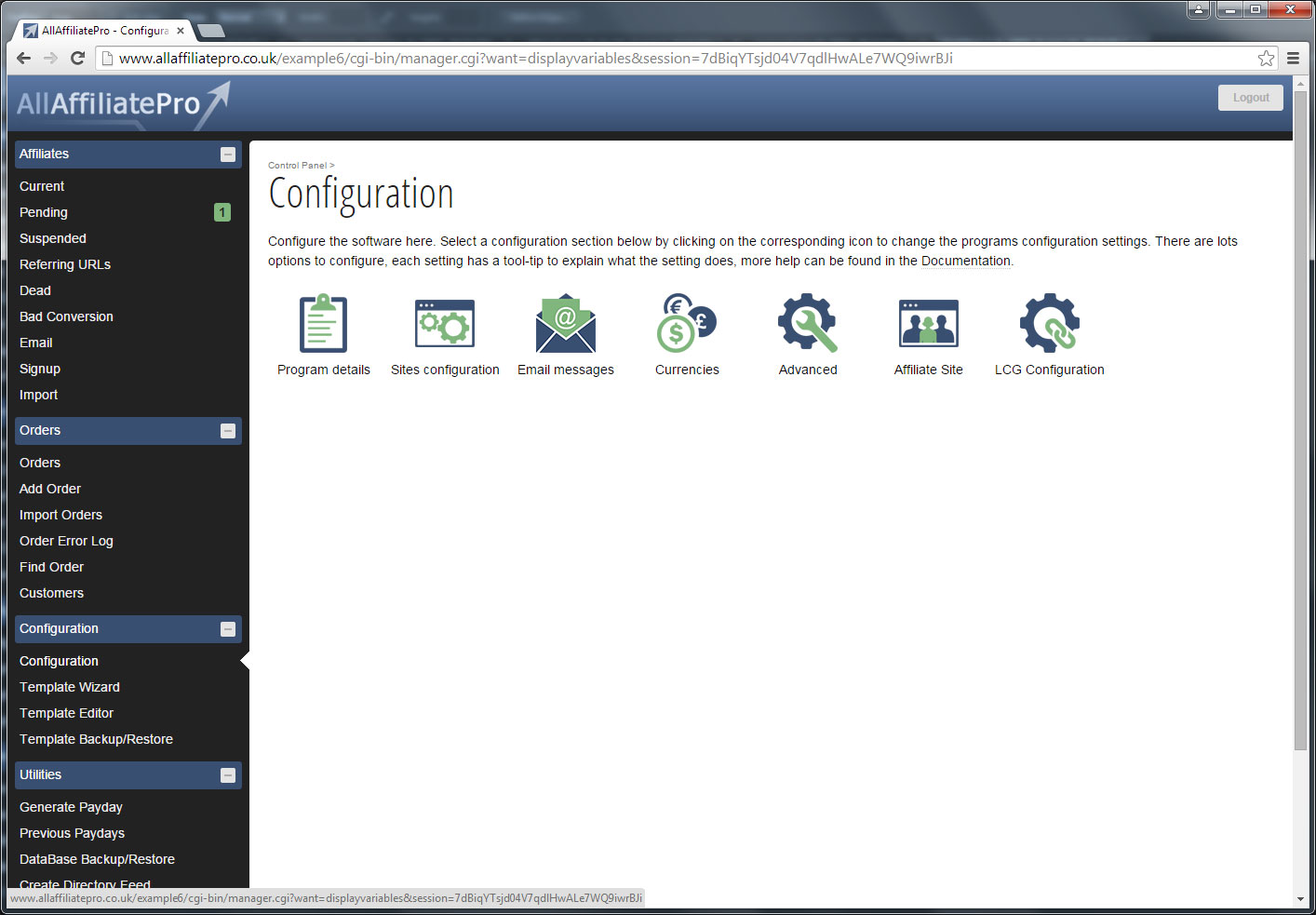
Configuration
This accesses the configuration
area which is split into 4 sections.
Program details - Standard configuration
details such as your email address, domain name,
etc.
Payments configuration - Shown below
in more detail.
Email messages - Allows you to edit all
autoresponder email messages. Such as the joining
email when an affiliate signs up.
Advanced - Advanced configuration variables.
Click
the graphic on the right for a larger version. |
|
Configuration:
Sites & Payments configuration
This allows you to setup the sites on your network,
and their individual commission rates. You can
set the site URL, a label and what commissions
are available.
Click
the graphic on the right for a larger version.
|
|
|
Top
| LinkCodeGenerator |
| Admin
Area
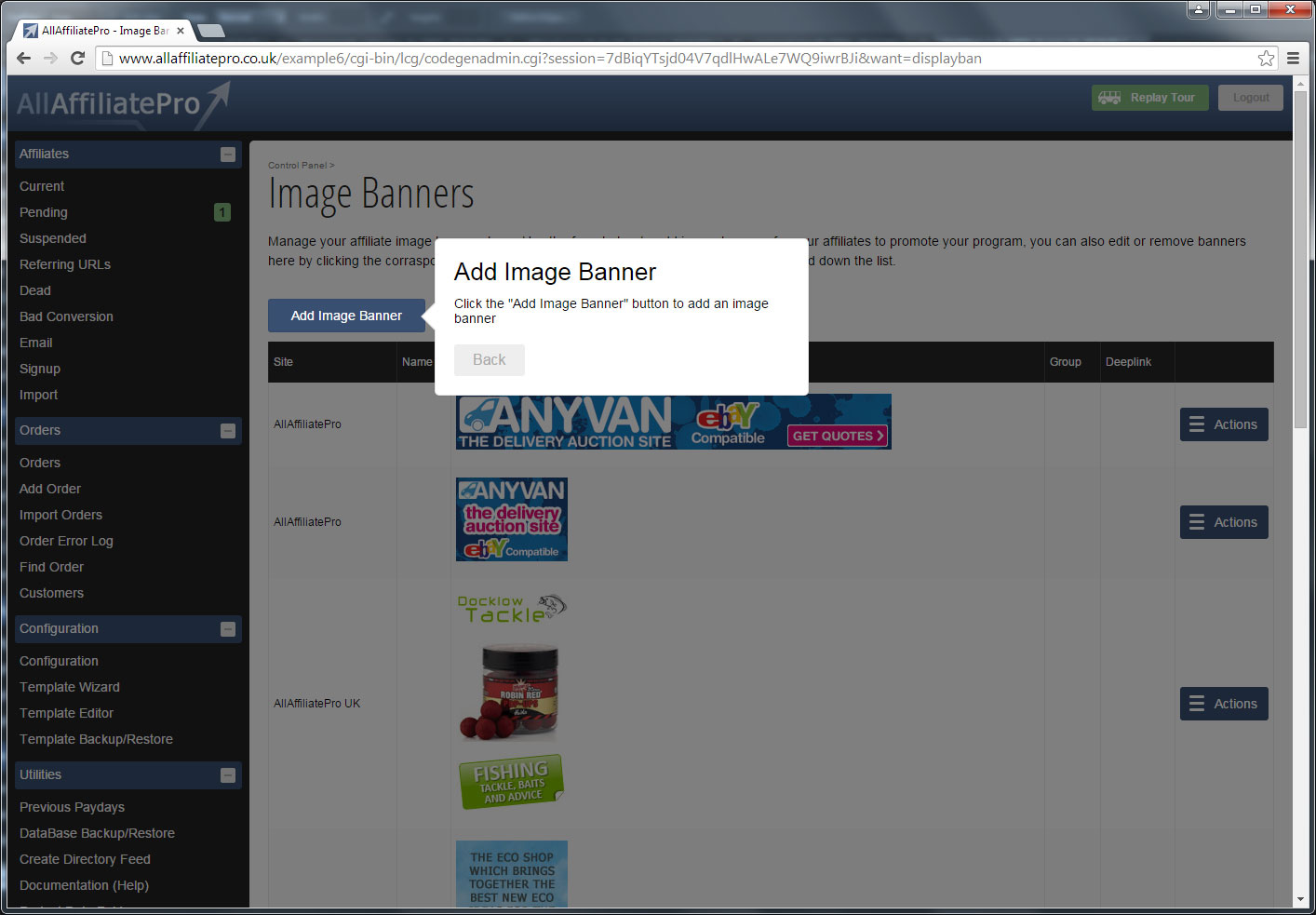
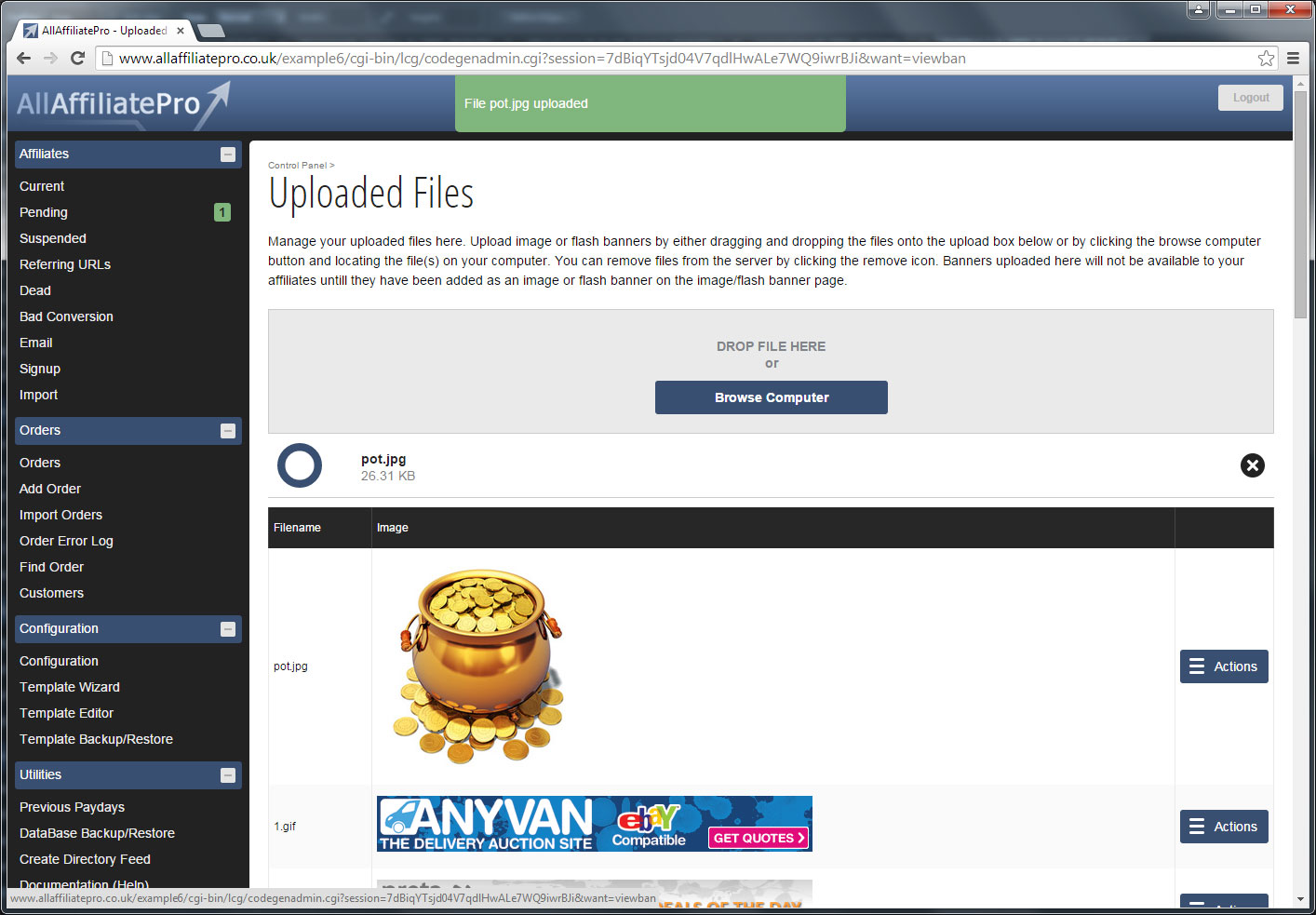
This is where you can upload
and input your banners, text links and deep
links. You also have optional javascript
features.
Click
the graphic on the right for a larger version
with notes. |
|
| Affiliate
Area
This is where affiliates
choose which sites they want to promote.
They also select which type of links they
want to use.
Click
the graphic on the right for a larger version
with notes. |
 |
| Available
Banners
Affiliates select exactly
which banners they want to use from the
ones you have input.
Click
the graphic on the right for a larger version
with notes. |
 |
| Banner
HTML
Each affiliates exact linking
HTML code is generated for them, ready to
be cut and paste into their page.
Click
the graphic on the right for a larger version
with notes. |
 |
|
Top
| User
Guide |
| User
Guide
When AllAffiliatePro is installed
a unique User Guide is genreated for you
setup. This includes examples for your server,
no generic ones such as ...yourdomain.com.
Sections of this user guide are linked to
directly from the relevant AllAffiliatePro
functions.
Click
the graphic on the right for a larger version
with notes. |
|
|
Top
Click
here to continue to the next section
'Compatibility'
|